As with any electronic product, software is a key component to the function of that product. To make certain that you have the latest software update for your Trophy Cam, please read below.
HOW DO I KNOW IF I NEED THE UPDATE?
2022 CELLUCORE LIVE CELLULAR TRAIL CAMERA
The camera checks for software updates nightly. If a new software version is available, it will be downloaded and installed automatically. If you would like to manually install the software, please see the Update Directions section below.
2022 CELLUCORE 20 DUAL SIM AND SOLAR CELLULAR TRAIL CAMERA
The camera checks for software updates nightly. If a new software version is available, it will be downloaded and installed automatically. If you would like to manually install the software, please see the Update Directions section below.
2022 CELLUCORE 20 LOW GLOW CELLULAR TRAIL CAMERA
The camera checks for software updates nightly. If a new software version is available, it will be downloaded and installed automatically. If you would like to manually install the software, please see the Update Directions section below.
Core-DS 4K
Software update available for a camera with model
number 119987C.
Core-S 4K
Software update available for a camera with model
number 119949C.
2017 TROPHY CAM AGGRESSOR
Software update available for a camera with firmware version ending in 14215 for the 119874
Software update available for a camera with firmware version ending in 14222 for the 119875
Software update available for a camera with firmware version ending in 14221 for the 119876
Software update available for a camera with firmware version ending in 14223 for the 119877
2015 TROPHY CAM AGGRESSOR
Software update available for Trophy Cam models 119773, 119774, 119775, 119776, 119777.
You NEED the update if:
If you have a camera with a firmware version ending in 227 for the 119773, 119774, 119775.
If you have a camera with a firmware version ending in 228 or 22F for the 119773, 119774, 119775.
If you have a camera with a firmware version ending in 226 or 230 for the 119776, 119777.
You can verify the version of firmware that you currently have by reviewing the menu screens that shows FW version as shown in this image.
2014 TROPHY CAM
Software update available for Trophy Cam models 119636, 119628 and 119626 with a serial number less than B140610000 to preserve the time and date setting when you turn the cameras off.
Software update available for the Surveillance Camera Black LED 119514 solves a problem some users experienced with Work Time operations.
2014 TROPHY CAM HD WIRELESS
If you purchased a Trophy Cam HD Wireless Trail Camera before April 2014 or your serial number (found inside the door of your camera above the LCD monitor) is less than BW201312.
2013 TROPHY CAM HD
If the first six characters in the model number are 119537 or 119547 you may need the update. (Model number is shown on back of package and back of camera) AND your serial number (found inside the door of your camera in the battery compartment) is less than B130411821
2013 NATUREVIEW CAM HD
If the first six characters in the model number are 119439 or 119440 you may need the update. (Model number is shown on back of package and back of camera) AND your serial number (found inside the door of your camera in the battery compartment) is less than B130516900
2011 TROPHY CAM MODELS
If the first six characters in the model number are 119436, 119446, 119467 or 119456 you may need the update. (Model number is shown on back of package and back of camera) AND your serial number (found inside the door of your camera in the battery compartment) is less than B110600001 (for 119436/119446) or less than B111200001 for 119467 or more than B110313457 for 119456.
2010 TROPHY CAM MODELS
If the first six characters in the model number are 119425, 119435, 119445 or 119455 you may need the update. (Model number is shown on back of package and back of camera)
DOWNLOAD THE LATEST SOFTWARE
2022 CELLUCORE LIVE
CelluCORE Live Cellular Trail Camera
2022 CELLUCORE SOLAR AND DUAL SIM
CORE-DS 4K and CORE-S 4K
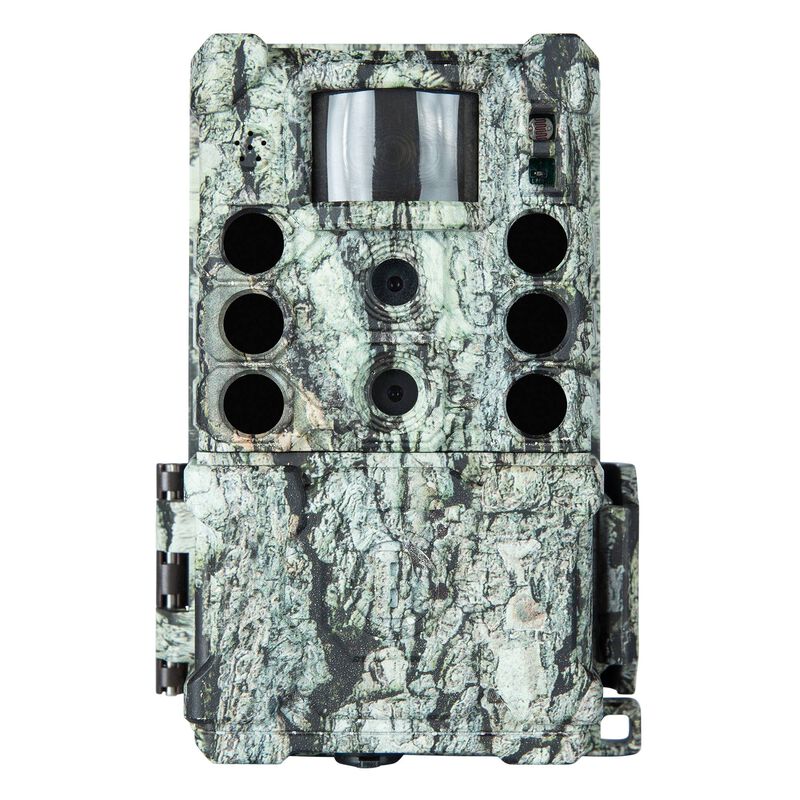
119987C
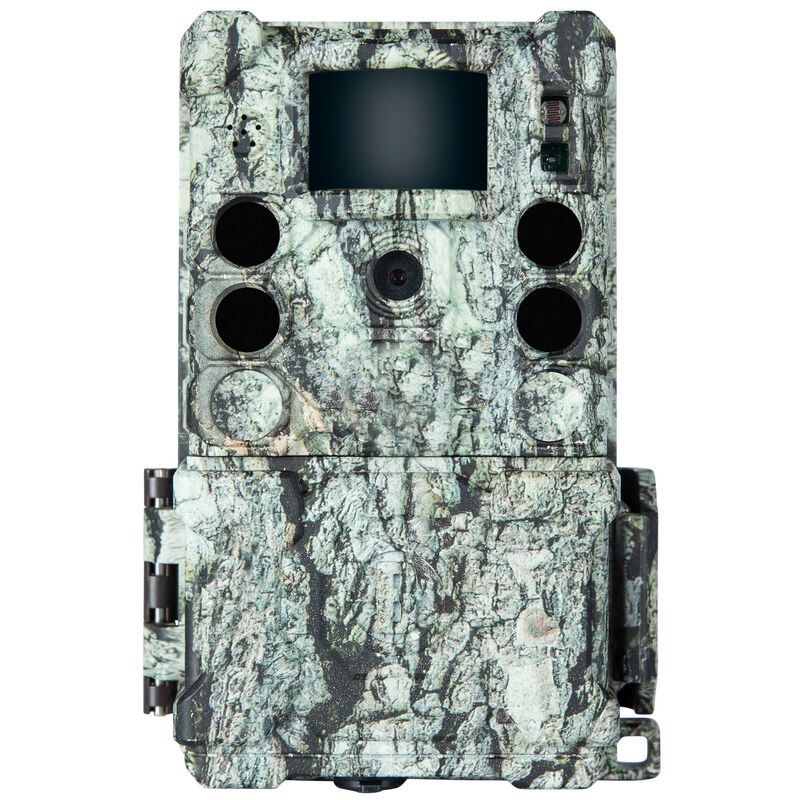
Core DS-4K
2019 IMPULSE TRAIL CAMS
119900A - Firmware version ending in V1.3.42
2017 TROPHY CAMS
119874 - Firmware version ending in 239
119875 - Firmware version ending in 232
119876 - Firmware version ending in 241
119877 - Firmware version ending in 234
2015 TROPHY CAMS
1197773, 119774 or 119775 - Firmware version ending in 227
1197773, 119774 or 119775 - Firmware version ending in 228 or 22F
119776, 119777 - Firmware version ending in 226 or 230
2014 TROPHY CAMS
119874 - Firmware version ending in 239
2013 TROPHY CAMS
US MODELS
Trophy Cam HD RealTree AP Xtra
NON-US MODELS
Trophy Cam HD RealTree AP Xtra
2013 NATUREVIEW CAMS
NatureView Cam HD Max - 2.4" Color LCD
2011 TROPHY CAMS
US MODELS
B&W Text LCD Brown Case or Bone Collector Camo Case
Color Viewscreen LCD Black Case
NON-US MODELS
Color Viewscreen LCD Brown Case
2010 TROPHY CAMS
US MODELS
Bone Collector B&W Text LCD Camo Case
NON-US MODELS
UPDATE DIRECTIONS
2022 CELLUCORE LIVE CELLULAR TRAIL CAMERA
• Please see Instruction Manual for information regarding recommended SD cards.
• Copy the GO_LIVE.bin file to the root directory of a formatted SD card. If there is an older version of the GO_LIVE.bin file, please remove it first.
• Insert SD card into camera ensuring it is fully seated.
• Press and hold the wakeup button while sliding the power switch to “ON”. The Camera Status and Battery Life LEDs will turn yellow, which means the upgrade is in progress and you can release the Wake Up button.
• Wait about 70 seconds until the camera automatically reboots.
• If the camera does not automatically reboot, please repeat the update steps or contact customer support.
2022 CELLUCORE 20 DUAL SIM AND SOLAR CELLULAR TRAIL CAMERA
• Please see Instruction Manual for information regarding recommended SD cards.
• Copy the 3 files (Cellular.bin, DRAMPARA.txt, ISP.BIN )to the root directory of a formatted SD card. If there are older versions of the files on the SD card, please remove them first.
• Insert the SD card into the camera ensuring it is fully seated.
• Press and hold the Wake Up button while sliding the power switch to “ON”. The Camera Status and Battery Life LEDs will turn yellow, which means the upgrade is in progress and you can release the Wake Up button.
• Wait about 20 seconds until the LEDs turnoff and the camera reboots.
• If the camera does not automatically reboot, please repeat the update steps or contact customer support.
2022 CELLUCORE 20 LOW GLOW CELLULAR TRAIL CAMERA
• Please see Instruction Manual for information regarding recommended SD cards.
• Copy the 3 files (Cellular.bin, DRAMPARA.txt, ISP.BIN )to the root directory of a formatted SD card. If there are older versions of the files on the SD card, please remove them first.
• Insert the SD card into the camera ensuring it is fully seated.
• Press and hold the Wake Up button while sliding the power switch to “ON”. The three LED indicators will turn yellow, which means the upgrade is in progress and you can release the Wake Up button.
• Wait about 20 seconds until the LEDs turnoff and the camera reboots.
• If the camera does not automatically reboot, please repeat the update steps or contact customer support.
CORE-DS 4K and CORE-S 4K
(Both cameras have the same update instructions but a different file to download)
Please see Instruction Manual for information regarding recommended SD cards.
Download the .zip file from the “DOWNLOAD THE LATEST SOFTWARE” section.
Extract the .zip to view .BRN files
Transfer .BRN file to the root of the SD
Power on camera
Press menu -> left to view firmware page
if firmware upgrade compatibility detected, option will be shown to apply update
Apply update, power off and power on your camera
2019 IMPULSE TRAIL CAMERA
Please read the below instructions completely before starting.
- Go to https://bushnelloptics.myshopify.com/pages/product-software-updates and navigate to the “2019 Impulse Trail Cams” within the “DOWNLOAD THE LATEST SOFTWARE” section page to download the update and save it to a formatted SD card.
- Insert an SD card into your computer and format it. Now copy the downloaded file onto your SD card. The file name should read IMPULSE-V1.3.42.bnl.
- Insert the SD card containing the update into the camera.
- Power on the camera and Navigate to the Setup-Firmware Update screen. Upon hitting the OK button the camera will ask you to confirm that it is updating to version 1.3.42. Select Ok and the update will show that it is copying…. and the camera will re-boot.
- Once the camera has re-booted, the update is complete. Navigate to Version Check and make sure that is says 1.3.42. If it does you can now setup the camera as normal. If it does not, please repeat steps 2 and 3.
2017 TROPHY CAM AGGRESSOR
Please read the below instructions completely before starting. Failure to follow the directions will result in a bricked camera that will no longer operate and is irreversible.
- Insert an SD card into the computer. If any files exist on the SD card, it is recommended to back up the files and format the card
- Copy the “.BRN” and “.ena” files to an empty SD card.
- Safely remove/eject the SD card from the computer once the files have been copied.
- With the camera turned OFF, put the SD card and 8 fresh batteries into the camera.
- Press and hold the ▲ button.
- While holding the ▲ button, slide the power switch to SETUP.
- A green LED (on the front of the camera) will begin flashing and you can release the ▲ button. The green LED is located in the same location as the Red PIR indicating LED, which will flash as well when motion is detected.
- When the Green LED stops flashing, the update is complete.
- Turn the camera off, let sit for 5-10 seconds, and then turn back to setup.
You can now setup the camera as normal, but will now have the option to change the camera from dynamic video capture to 5-60 second video clips.
2015 TROPHY CAM AGGRESSOR
Software update available for Trophy Cam models 119773, 119774, 119775, 119776, 119777.
- Acquire the correct firmware for your Trophy Cam HD Aggressor using the links above
- Click on the appropriate firmware version to begin downloading the .zip file
- Open the .zip file
- Drag both files (.elf and spec.bin) to your desktop. Or you can right click the downloaded .zip file and select “extract all”
- Insert SD card into computer / SD card reader and open, you should either see a blank screen, or one folder labeled “DCIM”
- If any file exist on the SD Card it is best to format the card
- Copy .elf and spec.bin files onto SD card. (DO NOT place into DCIM folder)
- Remove SD card from computer once the files have been copied
- Insert SD card into your Trophy Cam, along with a new set of 8 – AA Batteries
- Press and hold the Up Arrow button. (Far left button)
- While holding the Up Arrow, slide the power switch to “setup"
- A Green LED (on the front of the camera) will begin flashing and you can release the Up Arrow. (The Green LED is located in the same location as the RED PIR indicating LED, which will flash as well when motion is detected)
- When Green LED stops flashing, the update is complete
- Power OFF your Trophy Cam when the update is complete
- To double check Firmware version, slide the power switch to “SETUP.” Press the “MENU” button and then press the “LEFT” arrow key. Firmware version will be displayed
FOR MODELS 119636(C), 119628(C), 119626(C) TROPHY CAM
Download and unzip the correct software update for your Trophy Cam trail camera and drag-and-drop all update files onto an empty SD card. Install 8 new batteries in your Trophy Cam and insert the SD card into your trail camera. Press and hold down the UP button while moving the switch from the 'OFF' position to 'SET UP'. Continue to hold the UP button for at least the first 10 seconds. The camera setup LED on the front of the camera will flash red and green. The Upgrade starts and finishes in about 30 seconds, once it has finished the green LED light will stop blinking and switch to a solid red LED motion sensor light. Move the switch back to the 'OFF' position and your updated Trophy Cam should be ready to go.
FOR MODEL 119599(C)TROPHY CAM HD WIRELESS
Download and unzip the correct software update for your Trophy Cam trail camera and place the both updated files onto an empty SD card. Install 12 new AA batteries in your Trophy Cam HD Wireless and insert the SD card into your trail camera. Press and hold down the UP button while moving the switch from the 'OFF' position to 'SET UP'. Continue to hold the UP button for at least the first 10 seconds. The camera setup LED on the front of the camera will flash red and green. The Upgrade starts and finishes in about 30 seconds, once it has finished the green LED light will stop blinking and turn to simply a red LED motion sensor light. Move the switch back to the 'OFF' position and your updated Trophy Cam should be ready to go.
FOR MODEL 119537(C/CN) AND MODEL 119547(C/CN) TROPHY CAM HD
Download and unzip the correct software update for your Trophy Cam trail camera and place the both updated files onto an empty SD card. Install 8 new batteries in your Trophy Cam and insert the SD card into your trail camera. Press and hold down the UP button while moving the switch from the 'OFF' position to 'SET UP'. Continue to hold the UP button for at least the first 10 seconds. The camera setup LED on the front of the camera will flash red and green. The Upgrade starts and finishes in about 30 seconds, once it has finished the green LED light will stop blinking and turn to simply a red LED motion sensor light. Move the switch back to the 'OFF' position and your updated Trophy Cam should be ready to go.
FOR MODEL 119439 AND MODEL 119440 NATUREVIEW HD
Download and unzip the correct software update for your NatureView Cam camera and place both updated files onto an empty SD card. Install 12 new batteries in your NatureView Cam and insert the SD card into your camera. Press and hold down the UP button while moving the switch from the 'OFF' position to 'SET UP'. Continue to hold the UP button for at least the first 10 seconds. The camera setup LED on the front of the camera will flash red and green. The Upgrade starts and finishes in about 30 seconds, once it has finished the green LED light will stop blinking and turn to simply a red LED motion sensor light. Move the switch back to the 'OFF' position and your updated NatureView Cam should be ready to go.
FOR US MODEL 119467(C) AND NON-US MODEL 119467(CN)
Download and unzip the correct software update for your Trophy Cam trail camera and place the update onto an empty SD card. Install 8 new batteries in your Trophy Cam and insert the SD card into your trail camera. Move the switch from the 'OFF' position to 'SET UP'. The Upgrade starts and finishes in about 10 seconds, once it has finished the LCD will go blank. Move the switch back to the 'OFF' position and your updated Trophy Cam should be ready to go.
FOR US MODELS 119436, 119446, 119456(C) AND NON-US MODELS 119436, 119446, 119456(CN)
Download and unzip the correct software update for your Trophy Cam trail camera and place the update onto an empty SD card. Install 8 new batteries in your Trophy Cam and insert the SD card into your trail camera. Hold the left 'Up" button and move the switch from the 'OFF' position to 'SET UP' and look at the camera front for a blinking yellow light. Once the yellow light stops blinking, move the switch back to the 'OFF' position and your updated Trophy Cam should be ready to go.
FOR 2010 MODELS
See the read me PDF in the unzipped update file folder.